Setting up your Disc System

Managing
Crime Together

This Guide explains how to set up Disc. Following along will help ensure Disc is set up correctly and that you understand how the system works.

Before you start, it's recommended to read through the Disc User Guide to understand how Disc works from a Member's perspective. The User Guide is also available in Disc Desktop, by going to More > Help.

Once Disc is configured, you'll need to add content to the system before going 'live', which you do by adding Members and enabling the automated eNewsletter. Submitting and managing content, adding and managing Members, and configuring the eNewsletter are all covered in the Managing your Disc System manual, which is also available from the 'Help' menu in your Disc Admin Centre.

Throughout this guide, Notes and Tips are displayed in grey text boxes. Best Practice advice and recommendations are displayed in blue text boxes.

Contents:

1. Accessing Disc Desktop and the Admin Centre

Time: 5 Minutes

Disc has four main 'parts':

  • Disc Desktop - the secure Disc website
  • The Disc App - available for Android and Apple devices (search 'Littoralis Disc' in the Apple App Store/Google Play Store to find it). Anyone can download the app but only Members, with a valid login, can use it
  • The Admin Centre - accessed through Desktop. This is where Disc is configured and managed. Only the Administrator, 'Sub-Administrators' and 'Authors' can access it
  • The eNewsletter - generated and sent automatically to every Member each week. It contains a summary of content over the previous seven days

To access Disc

Supported browsers include Chrome, Edge, Firefox, and Safari.
  1. In your browser, enter the web address for your Disc Desktop system. If you're unsure of the web address, please contact support@littoralis.com
  2. Enter your Username (email address) and Password, and click Log In

Upon logging-in you will be taken to the Members homepage.

To access the Admin Centre

  1. When logged in, click Admin Centre, in the Navigation Ribbon

This will open the system's Dashboard. At the top of every page in the Admin Centre is the Admin Navigation Ribbon.

The Admin Centre Navigation Ribbon displays:

  • Dashboard - links to the Admin Centre Dashboard
  • I want to... - a drop-down menu with links to all Admin Centre functions
  • Help - links to Disc Admin Manuals
  • Homepage - links to Disc Desktop homepage.

2. Dataviews and Pop-up windows

You will generally use two types of display in Disc's Admin Centre: Dataviews and Pop-up Windows.

Dataviews

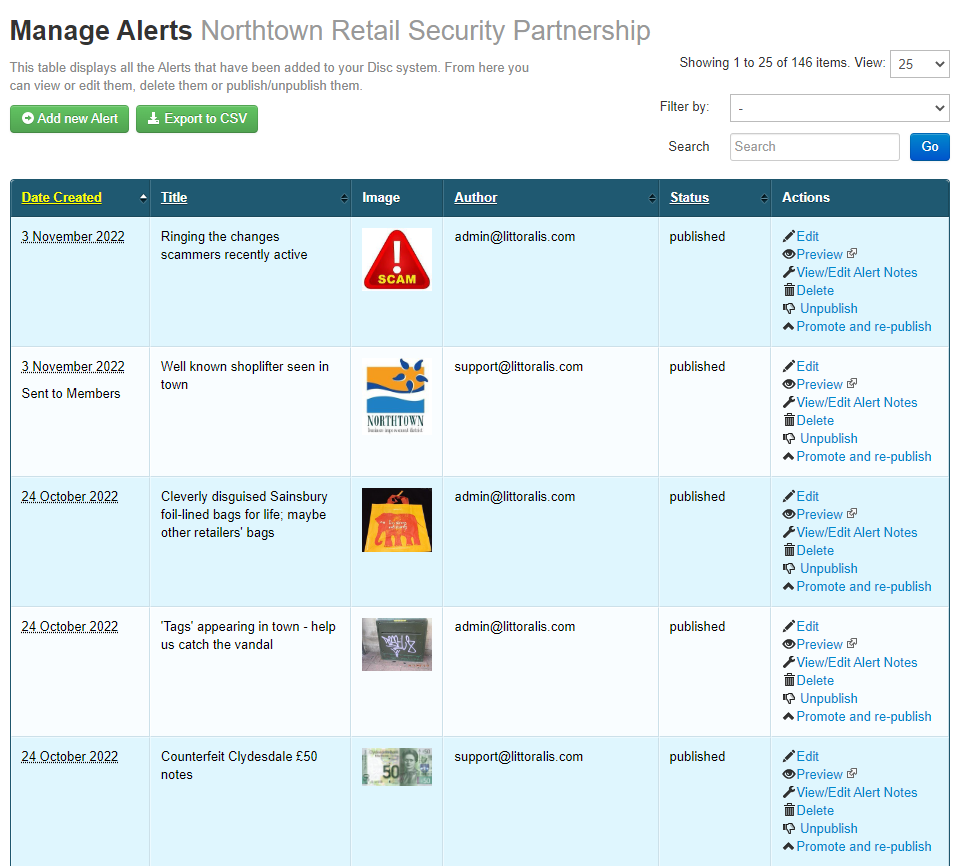
Dataviews are 'indexes': pages with tables displaying Items in your Disc Database. They generally include Actions that can be applied to each item, and an 'Add new...' button to create new items.

Dataviews list content such as News; Alerts; Subjects, and Incident Reports, etc. Here's an example of a Dataview:

Export to CSV, where displayed, allows exporting a 'Comma-Separated Values' (CSV) file of items displayed in the Dataview.

Most Dataviews include these tools and features:

  • Green Buttons (above the table), such as Add New, Export to CSV
  • Tools (above the table), such as Filter by and Search to find specific Items
  • Actions (can be applied to rows), such as View/Edit, and Delete
  • Sortable Columns some column headers are sortable; click again to reverse the order

Pop-Up Windows

Some Pop-ups include file upload fields that you can use to add an image and/or attach a document.

Pop-up Windows ('Pop-ups') are often used when adding new Items to the Database; editing, or deleting existing Items.

Pop-ups generally appear when you click Green Buttons or Actions in Dataviews, and when clicking some links in the I want to... menu. Here's an example of a Pop-up:

Pop-ups may contain forms to complete, or a range of options to select. Fields marked with a red asterisk (*), or 'mandatory' text, are required. Larger Text Fields include basic tools to add formatting or hyperlinks.

3. The 'I want to...' menu

Time: 2 minutes

The I want to... menu (in the Admin Navigation Ribbon) includes links to management and configuration tools.

This guide mostly discusses the I want to... > Configure Disc submenu; the Manage... submenus are covered in the Managing your Disc system guide.

The menu has this layout:

  • Manage Current Awareness - 'current awareness' information includes News, Alerts, Events, Documents, and Instant Messages
  • Manage Subjects - manage Known and ID-Sought Subjects
  • Manage Reports - manage processed reports
  • Manage Members - manage the membership of your Disc system
  • Configure Disc - links and submenus to Disc settings
  • View Analytics - Disc has many analytic reports that show how the system is being used over time. These can all be found here.

4. Configuring system name, logo, login page, and choosing the Desktop Theme

Time: 10 Minutes

Start by configuring basic details for your Disc system: the name, login page text, and logo. Next you can choose the preferred Desktop 'theme'.

System name, logo, and login page

  1. Go to I want to… > Configure Disc > System name, logo and login page
  2. Enter a name for your Disc system
  3. In the 'Description of your organisation...' field, add some introductory text for visitors to your login page. You can even add links to other websites, or add contact email address(es). Use the Insert/Edit Link tool, at the bottom of the text box, to do this
  4. Upload a logo for the system by clicking the 'Choose File' (or 'Browse') button
  5. Enter a postcode for your system; Disc will use this to center any maps shown in the Admin Centre
  6. click Save to confirm your changes.

Desktop theme

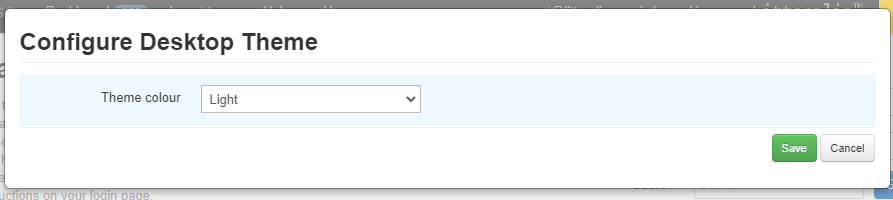
There are two 'themes' for Disc Desktop: Light Theme has a white background, and Dark Theme has a dark-blue background.

When choosing the theme, consider your logo's colour scheme. Logos with light backgrounds tend to work best with Light Theme, while logos with dark backgrounds tend to work best with Dark Theme.
  1. Go to I want to… > Configure Disc > Desktop Theme
  2. Choose either 'Light' or 'Dark'
  3. Click Save to confirm.

5. Setting-up Areas

Time: 10 - 20 Minutes

Areas are required for Incident Reporting and Public Realm Reporting. If your system runs Disc SC, Areas also configure how content is 'segregated'.

Setting-up Areas

Reporters must select one Area when submitting an Incident or Public Realm report. So, you should create a set of 'reporting Areas' for your Disc system (otherwise, every report will be associated with a default Area called 'Other'). The number of reports in each Area is shown in the Analytics.

Areas (usually) map onto physical geographic locations or districts, such as 'High Street' or 'West Town', etc. How broad or specific they are will generally depend how large an area your system covers: for example, a town Shopwatch might have one Area for each shopping street, but for a county-wide scheme, having one Area per town, village, or retail park could be more practical.

To add an Area

  1. Go to I Want To… > Configure Disc > Areas
  2. Click Add Area
  3. Enter the name of the Area
  4. Optionally enter a Post code and Description (this will only be visible in the Admin Centre)
  5. If Public Realm reporting is enabled (see Report Management Features, Options, and Settings), you may enter an email address, or comma-separated list of email addresses, for the Area. These emails will be sent copies of any Public Realm reports about that Area
  6. Click Save.

Areas: additional instructions for Disc SC

In Disc SC, Areas have another, very important role - 'segregating' content and Members. So, as well as adding reporting Areas to your system, you'll need to think about non-reporting, or segregation Areas it might also need. Members won't be able to submit reports about these Areas.

In Disc SC, Members, Current Awareness information, and Subject Image Galleries must be associated with (or 'belong to') one or more Areas. A Member will only see content that belongs to at least one of the same Areas as them, and can only submit Reports about reporting Area(s) they belong to.

To mark an Area a non-reporting Area

  1. Go to I Want To… > Configure Disc > Areas
  2. Click Add Area, or in the Actions column, click Edit to edit an existing Area
  3. (If adding a new Area, follow points 3 - 5 of the 'To add an Area' instructions, above)
  4. Untick the Include in Reports box
  5. Click Save.

You can associate Members and content with non-reporting Areas, but they can't submit Incident or Public Realm reports about them.

Not sure what Area(s) your system needs, or how best to use reporting and non-reporting Areas? Contact support@littoralis.com and we'll be happy to help.

6. Setting-up Premises

Time: 10 - 20 minutes

Premises are typically Member stores, outlets, pubs, etc; places where Members work and where incidents are likely to be reported.

You can create a list of Premises and associate relevant Members with them. A Member who belongs to a Premises will have access to their own My Premises section, showing Incident Reports submitted about Premises they belong to.

A Member may belong to more than one Premises.

A Member who belongs to a Premises can view details of Incident Reports submitted about that Premises, in Disc Desktop and their Disc App.

The number of Incident Reports submitted about each Premises is shown in the Analytics.

To add a Premises

  1. Go to I want to... > Configure Disc > Premises
  2. Click Add Premises
  3. Enter a name for the Premises
  4. If your system supports Disc SC, tick the box(es) to associate the Premises with relevant reporting Area(s)
  5. Click Save.

Retiring/unretiring Premises

Over time, Member Premises may change - a member business might leave the scheme, or close down. You could just delete a Premises from Disc when this happens; but first, all Incident Reports submitted about that Premises must be removed from it, or deleted.

Premises may instead be Retired. Retiring a Premises removes Members from it, leaves Incident associations intact, and moves the Premises to a Manage Retired Premises Dataview.

A Retired Premises may later be Unretired. To do this, click Manage Retired Premises above the Manage Premises Dataview, find the Premises, and click Unretire. Disc won't try to re-associate the previous Members, so you'll need to do that by hand. See the Managing your Disc system guide for details.

7. Current Awareness Management Features, Options, and Settings

Current Awareness information includes News, Alerts, Events, Documents, Advertisements, Instant Messaging, and the eNewsletter.

Adding and managing content, and the eNewsletter, is covered in the Managing your Disc system guide, but there are a few Current Awareness configuration options, too:

  • Alert display and auto-delete settings
  • Document Categories
  • Member Categories
  • Instant Messaging settings.
Time: 2 minutes

Alert display and auto-delete settings

There are two 'global' settings for Alert items in your system: how long they are published, and how long they are retained.

To configure Alert settings

  1. Go to I want to... > Configure Disc > Current Awareness Management > Alerts
  2. Tick the Withdraw Alerts... box, if you'd like Alerts to be removed from display a certain number of days after they're created
  3. Enter that number of days in the "After how many days?" box that appears
  4. Tick the Irrevocably delete Alerts... box if you'd like Alerts to be deleted from Disc, a certain number of days after they are created
  5. Enter that number of days in the "After how many days?" box that appears
  6. Click Save.
Time: 5 - 10 minutes

Document Categories

You may upload document files into Disc - attached to Document items - for Members to download. Disc has two default categories for Documents: Must Read, and Other. You can create any number of additional categories, making it easier for Members to find the information they need.

To create Document Categories

  1. Go to I want to... > Configure Disc > Current Awareness Management > Document Categories
  2. Click the Add new Document Category green button
  3. Enter a Title for the Category
  4. Optionally enter a Description for the Category (this will only be visible in the Admin Centre)
  5. Click Save.

Document Categories can be edited by clicking the Edit link, in the Actions column of Manage Document Categories.

Time: 5 - 10 minutes

Member Categories

Member Categories are for categorising Members - for example, by whether they work in the daytime or nighttime economy; are police officers, or security guards, or staff in your organisation, etc.

Member Categories are used with Alerts, and Instant Messages.

You must create (at least one) Member Category to use the Instant Messaging feature. They are also used when sending Alerts out from your system by email, or by push notification.

To create Member Categories

  1. Go to I want to... > Configure Disc > Current Awareness Management > Member Categories
  2. Click the Add new Member Category green button
  3. Enter a name for the Category
  4. Click Save.

Member Categories can be edited by clicking the Edit link, in the Actions column of Manage Member Categories. You can also use the Up and Down arrows in the Position column to choose the order they appear in.

Time: < 5 minutes

Instant Messaging

Instant Messages can be sent by Disc Members, to other Disc Members. Your system must have Member Categories (see above) configured. Each Member Category (for which Instant Messaging is enabled) has its own message 'thread' available in the App, and Disc Desktop. Members may send Instant Messages to (and read messages sent to) any Member Category they belong to if Instant Messaging is enabled for it.

Instant Messages are the only items Disc Members can submit that will be immediately visible to other Members, without admin review.

You may wish to work through the rest of this guide, and the Managing your Disc System guide before enabling Instant Messaging.

To configure Instant Messaging

  1. Go to I want to... > Configure Disc > Current Awareness Management > Instant Messaging
  2. Tick the Enable Instant Messaging box to enable Instant Messaging for all Member Categories, then
  3. Un-tick the boxes for any Member Categories you do not want Instant Messaging enabled for
  4. Choose the Retention period for messages (from 1 - 12 months)
  5. Set the Allowed Upload Types (file types) Members may submit with/as messages
  6. Set whether thread screens include a list of Members who belong to the thread
  7. Click Save.

8. Subject Management Features, Options, and Settings

Subject Management features include Subject Image Galleries, Subject Image Captions, and Default database deletion periods for Known and ID-Sought Subjects.

A core feature of many Disc systems is displaying images of 'offenders' or 'persons of interest' to Members. In Disc, these individuals are called Subjects and there are two types: Known Subjects, and ID-Sought Subjects.

Adding and managing Subjects is covered in the Managing your Disc system guide, but you'll need to configure Disc to manage displaying Subjects to Members. Options include:

  • Subject Image Galleries are categorised lists of Subjects
  • Subject Image Captions to highlight important information about Subjects
  • Database deletion periods for Subject data retention lengths
  • ID-Sought publishing whether ID-Soughts will be auto-published, or only if in Galleries
  • Enabling or disabling printable Galleries (PDF versions of the Galleries)
  • Subject 'Prohibitions' document settings
  • Subject DOB display settings.

Subject Image Galleries

Time: 10 minutes

Your Disc system can have as many galleries as it needs. Examples might include persons excluded from Members' premises, and/or persons known for (or suspected of) involvement in e.g. shoplifting, or ASB.

Your Disc system needs at least one Subject Image Gallery. Think of galleries as Subject categories, e.g. "Excluded Offenders"; "Shopflifters"; "Pubwatch Probation", etc.

Note that a Known Subject will only be visible to Members while listed in at least one gallery.

To add a new Subject Image Gallery

  1. Go to I want to... > Configure Disc > Subject Management > Subject Image Galleries
  2. click the green Add Subject Image Gallery button
  3. Enter a Name for the gallery, and (optionally) a Description
  4. Choose the Default gallery expiry period. This is the number of months a Subject will be listed on the gallery, by default
  5. Optionally choose the order Subjects appear in (alphabetically, or most-recently added first)
  6. If your Disc system supports Disc SC, select which Area(s) the gallery is visible to. Only Members belonging to one or more of the selected Areas will be able to see it
  7. Click Save.

Edit a Gallery by clicking the Edit link, in the Actions column of Manage Subject Image Galleries. You can also use the Up and Down arrows in the Position column to choose the order galleries are listed.

Adding and editing a Subject's gallery listings is covered in the Managing your Disc system guide.

Subject Image Captions

Time: 5 - 10 minutes

Subject Image Captions are 'warning markers' - short text labels to highlight important information about a Subject, for Members. For example: "Known for violence"; "Shoplifting"; "Carries needles", etc. One caption can be assigned to a Subject at a time, and it will appear with their picture, wherever it is displayed to Members.

To create Subject Image Captions

  1. Go to I want to... > Configure Disc > Subject Management > Subject Image Captions
  2. Click the Add Caption green button
  3. Enter a Title for the Caption
  4. Click Save to confirm your changes.

Once created, a Caption can be assigned to a Subject from their View/Edit Gallery status page (see the Managing your Disc system guide for details).

Default database deletion periods

Time: 5 minutes

You will need to configure default database deletion periods (i.e. data retention periods) for Known and ID-Sought Subjects. These are the lengths of time that each type of Subject's data will be retained, depending also on their gallery placements, and Incident Reports.

When a new Subject is created, its deletion date is based on the default period configured for the Subject type.

However, a Subject's database deletion date will be recalculated and pushed into the future, whenever it is added to a Gallery, or a new Incident Report about them is processed. The rule is: a Subject's database deletion date = date of last gallery expiry, or last reported incident (whichever is greatest) + default database deletion period.

To configure database deletion periods

ID-Sought Subject deletion periods are typically shorter than those for Known Subjects. If a person hasn't been identified after a few months, it's unlikely they will be.
  1. For Known Subjects, go to I want to... > Configure Disc > Subject Management > Database Deletion Period for Known Subjects
  2. Choose the number of months from the dropdown menu
  3. Click Save
  4. For ID-Sought Subjects, go to I want to... > Configure Disc > Subject Management > Database Deletion Period for ID-Sought Subjects
  5. Choose the number of months from the dropdown menu
  6. Click Save.

A Subject's calculated deletion date can be overridden from their View/Edit Gallery status page.

ID-Sought Publishing

Time: 1 minute

You can choose whether ID-Sought Subjects (those without any name data) will only be published to Members while listed in a Gallery (as with Known Subjects; this is the default setting), or will be published even if not in a Gallery.

To configure ID-Sought Publishing

  1. Go to I want to... > Configure Disc > Subject Management > Auto-Publish ID-Soughts
  2. Tick the checkbox if you would like ID-Soughts to be published, even if not in Galleries
  3. Leave the checkbox unticked if you would like ID-Soughts to be published only if in Galleries
  4. Click Save to confirm any changes.

Printable Gallery PDFs

Time: 2 minutes

Subject Image Galleries may be generated as PDF files, which could be printed by Members for offline use. This is not recommended, due to difficulties controlling personal data once it has been taken out of Disc, but some organisations find this setting useful.

Printable PDFs can be enabled globally, for selected Members, or only for selected Sub-Administrators. This guide discusses only the global setting - see the Managing your Disc System guide for Member-specific settings.

Note that the Administrator user will always see a "Printable PDF" button when viewing Subject Image Galleries.

To enable Printable Gallery PDFs

Note that only the Administrator can configure this option.

  1. Go to I want to... > Configure Disc > Subject Management > Allow/Disallow printable Gallery PDFs
  2. Tick the checkbox
  3. Click Save.

The setting can be disabled by un-ticking the checkbox and saving the page.

Restricting download of Subject 'prohibitions' documents

Time: 2 minutes

'Prohibitions' documents may be uploaded to Subject profiles in Disc (one per Subject). These can provide details about an exclusion, or information about CBO restrictions, etc.

By default, all Members can view and download a prohibitions document from a Subject's profile. However, Disc can be configured so that only the Administrator and Sub-Administrators will see these download links.

To Restrict download of Subject Prohibitions

  1. Go to I want to... > Configure Disc > Subject Management > Restrict download of Subject Prohibitions
  2. Tick the checkbox
  3. Click Save.

The setting can be disabled by un-ticking the checkbox and saving the page.
Configuring Subject Dates of Birth display

Time: 2 minutes

When creating Subjects, Disc users can enter a date of birth (DOB). By default, if a Disc Subject has a DOB, it will be shown in full on their profile.

This default can be changed so that only the year of birth will be shown to Members.

Like all date fields in Disc, Subject DOB fields can't accept partial values - a day, month, and year must be entered. If not all of these values are known, leave the field empty.

To show partial Subject DOBs (the year of birth)

  1. Go to I want to... > Configure Disc > Subject Management > Display full or partial Subject dates of birth
  2. Un-tick the checkbox (it is ticked by default)
  3. Click Save.

The setting can be changed by re-ticking the checkbox and saving the page.
9. Report Management Features, Options, and Settings

Members can submit Incident Reports, including adding Subjects involved in them, Intelligence Reports, and (optionally) 'public realm' issues, such as graffiti, or fly-tipping.

Disc supports the following report types:

  • Incident Reports (always enabled) for instances of low-level crime or ASB
  • Intelligence Reports (always enabled) to provide information about a particular Subject, which does not relate to a specific incident
  • Crime Reports (optional) if enabled, Members may 'escalate' Incident Reports to Crime Reports, sent to police
  • Public Realm Reports (optional) for issues such as graffiti, vandalism, broken street furniture, and other 'public realm' issues.

Whenever an Incident or Intelligence report is submitted, the Administrator will receive an email notification from Disc. Your Disc system can also be configured to automatically send emails to other recipients.

Incident Reports

Time: 5 minutes

Incident Reports are for providing information about instances of low-level crime or ASB, of legitimate interest to your scheme or organisation. For example: shoplifting, or a breach of an exclusion notice.

Adding and processing Incident Reports is covered in the Managing your Disc system guide.

Members may submit Incident Reports through Disc Desktop or their Disc App. Incident Reporting is always enabled, so there are just two steps required to set it up: adding 'report recipients' (discussed further below), and choosing whether your Disc system allows 'zero-Subject' Incidents.

When a Member adds an Incident Report, they can associate existing Subjects with their report, and/or add new Subjects. By default, they may even submit an Incident Report without providing any Subject details - a 'zero-Subject' report. For organisations such as independent business crime reduction partnerships, zero-Subject reports may not be very useful, so you can instead force Members to add/associate at least one Subject to/with their reports.

To Enable/Disable 'Zero Subject' Incident Reports

  1. Go to I want to... > Configure Disc > Report Management > Enable/Disable 'Zero Subject' Incident Reports
  2. Leave the box ticked if you'd like Members to submit zero-Subject incidents, or
  3. Un-tick the box if you'd like to disable the option
  4. Click Save.

Intelligence Reports

Time: 2 minutes

Intelligence Reports are designed for Members to provide information about a Subject that generally does not relate to a specific incident. For example: a new/improved image; information about a new MO, or a new alias, etc.

Processing Intelligence Reports is covered in the Managing your Disc system guide.

Intelligence Reporting is always enabled and there are no configuration steps required, except as described in the Configuring Report Recipients section, below.

Direct to Police Crime Reporting

Time: 5 minutes

If Direct to Police Crime Reporting is enabled, Members may 'escalate' Incident Reports they submit into Crime Reports, including (optionally) MG11 Witness Statements, sent to police.

Full details about how this feature works from a Member's perspective can be found in the Members User Guide, available at More > Help in Disc Desktop.

Your local police force must agree to accept Crime Reports through Disc, and will need to provide you with a contact centre email address to accept the reports, which are sent as PDF documents attached to emails.

To configure Crime Reporting

  1. Go to I want to... > Configure Disc > Report Management > Crime Reporting
  2. Tick the checkbox to enable the feature
  3. Enter the '101' email address provided by police
  4. Click Save.

Public Realm Reporting

Time: 10 minutes

Public Realm Reports are for Members to submit information about issues in the 'public realm', for example: graffiti; fly-tipping; broken/damaged street furniture, etc. It's a very flexible reporting system, as you create your own custom list of report types. You can even configure it so that reports of a specific type, or about a particular Area, are sent to specific email addresses.

Public Realm Reporting is especially useful for organisations with responsibility for high streets and public spaces, but it's highly flexible, with a wide range of user-cases.

To enable Public Realm Reporting

  1. Go to I want to... > Configure Disc > Report Management > Enable/Disable Public Realm Reporting
  2. Tick the checkbox
  3. Click Save.

To add Public Realm Report types

No default Report types are provided - you will need to create your own custom list.

  1. Go to I want to... > Configure Disc > Report Management > Public Realm Report types
  2. Click the Add report type green button
  3. Enter a report Name (e.g. fly-tipping, etc)
  4. Optionally enter an email address, or comma-separated list of email addresses that will receive copies of reports of this type
  5. Click Save.

Configuring Report Recipients

Time: 5 minutes

Whenever a Member submits an Incident or Intelligence Report, the Administrator will receive a copy by email. You can configure Disc to send copies to any other email addresses, too.

You can also configure Disc to send anonymous notification emails instead of emailing the contents of reports.

To Configure Report Recipients

  1. Go to I want to... > Configure Disc > Report Management > Report Recipients
  2. In the Send all new Incident and Intel Report emails to box, enter any email addresses (separated with commas, if more than one) that should be sent copies of all Incident and Intelligence Reports when they are submitted
  3. Tick the Anonymise new Incident and Intel Report notification emails box to send emails without including reports' contents
  4. In the Send selected Incident or Intel Report emails to box, enter any email addresses (separated with commas, if more than one) that Incident and Intelligence Reports may optionally be sent to while being processed (see the Managing your Disc system guide for details)
  5. Tick the Anonymise 3rd party Incident and Intel Report emails box to send 3rd party notification emails without including report contents
  6. In the Send all Public Realm Reports to box, enter any email addresses (separated with commas, if more than one) that should be sent copies of all Public Realm Reports when they are submitted
  7. Click Save.

10. Member Registration Settings, Member Groups, and the Welcome Email

Members are users of Disc. A Member must have been invited (by adding their email address to Disc) and completed the registration process, before they can access Disc Desktop, or use the Disc App.

Adding and managing Members are covered in the Managing your Disc system guide, but there are several Member configuration options, including:

  • The Default Member re-Registration Period
  • Enabling/Disabling the Members Directory
  • Customising the Welcome Email
  • (Optionally) setting up Member Groups.

Default Member re-Registration Period

Time: 2 minutes

New Members must 'register' before they can use Disc. It's also good practice to force Members to 're-self-certify' (re-register) periodically, to make sure their details are kept up to date. You can also force Members to use a different password each time they re-register.

To configure the Default Member re-Registration Period

  1. Go to I want to... > Configure Disc > Member Registration > Default Member re-Registration Period
  2. Tick the Tick to enable forced re-Registration box
  3. (optionally) tick the Tick here to force users to choose a different password from before when re-registering box
  4. Select the number of months (3, 6, 9, or 12) after which Members are required to re-register
  5. Click Save.

The Members Directory

Time: 2 minutes

The Members Directory is a list of Members who have logged-in to Disc. Members can use it to find contact details for other Members (address and telephone number), and to send emails to them. When enabled, the Directory can be found at More > Members Directory, in Disc Desktop. The Directory is not available in the Disc App.

To Enable/Disable the Members Directory

  1. Go to I want to... > Configure Disc > Member Registration > Enable/Disable Members Directory
  2. Tick the box to enable the feature, or un-tick to disable it
  3. Click Save.

The Welcome Email

Time: 5 - 10 minutes

The Welcome Email is sent to all new Members when they're first added to Disc. New Members must click the 'registration link' in their Welcome Email to complete their registration. Registration links are unique to each Member, and cannot be re-used.

Default text is provided for the Welcome Email, but you can customise (most of) the contents.

To Customise the Welcome Email

  1. Go to I want to... > Configure Disc > Welcome Email
  2. Update the 'Section 1' text; this appears above the registration link
  3. Update the 'Section 2' text; this appears beneath the registration link
  4. Click Save.

Note that the Welcome Email includes a block of text about the Disc App, and (at the base) contact details for the Administrator. These sections can't be amended.

Member Groups

Time: 5 - 10 minutes

Member Groups are sub-sets of your membership, managed by 'Member Group Managers' without giving them access to other parts of the Admin Centre. One use case might be for a shopping centre, within a BID or BCRP area, which regularly needs to add or remove security staff. You could create a group for them, make the Security Manager a Group Manager, then they can look after adding and deleting their staff as Members.

Members who belong to a Member Group are also listed on the main Manage Members Dataview, so the Administrator always has overall control of the membership.

To add Member Groups

  1. Go to I want to... > Manage Members > Manage Member Groups
  2. Click the Add a new Group green button
  3. Enter a name for the group
  4. Click Save.

This guide only covers how to create Member Groups. For details about how to manage them (including assigning/removing Group Managers), see the Managing your Disc System guide.

11. Partner Logos

Time: 5 Minutes

You can add logos of Partners, Sponsors, Stakeholders (etc), to Disc. Partner logos will appear on: the login page; all pages in Disc Desktop; a Partners screen in the App; emailed Alerts, and the eNewsletter. You can also link them to Partner websites.

To add Partner Logos

Logos are displayed on screen from left to right, in the order shown on the Partner Logos page.
  1. Go to I want to… > Configure Disc > Partner Logos
  2. Click Add Partner Logo
  3. Use the grey button in the "Upload Partner's logo" section to upload the image from your computer
  4. (Optionally) enter the URL (web address) of the Partner's website
  5. Click Save.

You can add as many Partner logos as needed, and change the order of the logos using the Up and Down controls in the Position column.

12. Police UK Crime Map

Time: 2 minutes

A 'Crime Map' showing latest-available Police UK data can be displayed in Disc Desktop.

The map appears under the Latest News block on Disc Desktop's homepage. It will be centered on the post code of the Member currently viewing the page.

The Crime Map shows Police UK data, not data from Disc.

To enable the Crime Map

  • Go to I want to... > Configure Disc > Crime Map
  • Tick the 'Enable Crime Map' box
  • Click Save.

The Crime Map can be disabled again by un-ticking the 'Enable Crime Map' box.